
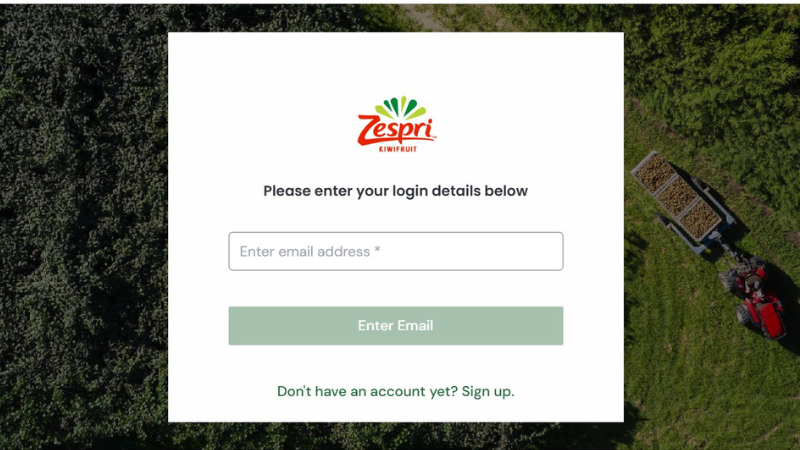
We’re upgrading the technology behind your Zespri login as we prepare to launch the new My Growing Portal. You’ll receive a welcome email at your registered email address with a temporary password. The first time you log in, you’ll be guided through a short one-off setup to give consent and create a new password. It only takes a few minutes, and after that you’re all set.
Your first login - step by step
The first time you log in after the upgrade, you’ll go through a short one-time setup process. Here’s what to expect:
| Step | What happens | What you do |
|---|---|---|
| 1 | Go to the login page | Navigate to your usual Zespri application (e.g., Canopy). You’ll see a new login screen. |
| 2 | Enter your email address | Use your email address as your username. This replaces the old Canopy username. |
| 3 | Enter the temporary password from your welcome email | Use the password we sent you. This verifies your identity. |
| 4 | Set a new password | Create a new password for the upgraded platform. This will be your password going forward. (14 symbols, including lower/uppercases, digits and special character, like _.!,#) |
| 5 | You’re done | Log in with your email address and your new password. You’ll receive a welcome email confirming your account is set up. |
Important: Have your email handy
You’ll need access to the email linked to your Zespri login. As part of the upgrade, we’ll send you a welcome email with a temporary password.
If you’re not sure which email is linked, or you can’t access it anymore, Grower Support Services can help before you get started.
What's different
After the upgrade, there are a few visible changes to how you log in:
- Your login username is now your email address. If you previously logged in with a Canopy username (e.g., “john.smith”), you’ll now use your email address (e.g., “john.smith@example.com”) instead.
- You’ll see a new, modern login screen at login.zespri.com.
- Single sign-on - log in once, and access Canopy, Grower Portal, MCS, and other Zespri tools without logging in again.
- Stronger security protections for your account, with new options you can choose to enable.
The way you navigate Canopy and your other Zespri tools will not change.
Magic link login
Log in without a password
Don’t want to remember a password? After the upgrade, you can choose to log in with a Magic Link - a secure one-time link sent to your email. Just enter your email address on the login page, choose “Send me a Magic Link,” and click the link in your email. You’re in. No password needed.
If you prefer, you can also choose to log in using a one‑time password instead.
Enhanced security
As part of the upgrade, you now have the option to add an extra layer of protection to your account using Enhanced Security. This is entirely optional.
If you choose to enable Enhanced Security, each time you log in you’ll be asked to enter a short code sent to your email or mobile phone. This means that even if someone else knows your password, they cannot access your account without also having your code.
How to enable Enhanced Security: Log in to your account, navigate to your account settings, and select “Manage 2FA Settings.” You can choose to receive codes by email or SMS (text message).
Lost access to your email or phone? Contact Zespri Support Services (GSS) and they can disable Enhanced Security on your account after verifying your identity. You can then re-enable it with a new device or contact method.
Self-service account management
You now have more control over your own account. Three new self-service options are available after you log in:
| What you can do | How it works |
|---|---|
| Change your password | Update your password at any time through your account settings. |
| Update your personal details | Change your name, email address, or phone number. Changes to your email or phone will require a verification step to confirm you have access to the new contact method. |
| Manage Enhanced Security | Enable, disable, or switch your Enhanced Security method between email and SMS. |
Some things still require Zespri Support
Account recovery (if you’ve lost access to your registered email or phone), account deactivation or reactivation, and account unlocking after too many failed login attempts are not available as self-service. Please contact Grower Support Services for assistance with these.
What stays the same
- Your access to Canopy, Grower Portal, MCS, and other Zespri tools is unchanged.
- Grower Support Services remains your first point of contact for any support needs.
- The way you navigate and use your Zespri tools will not change.
- Your existing application permissions and access levels carry over.
Frequently asked questions
Yes - but only once. The first time you log in after the upgrade, you’ll use your current password to verify your identity, then set a new password as part of the one-time setup. After that, your new password is all you need (or you can use a Magic Link instead).
No. Going forward, you’ll log in with your email address. Your old Canopy username will no longer work after the upgrade.
Contact Grower Support Services before the upgrade and they can confirm which email address is associated with your account.
No. Your account is migrated automatically. The first-login setup confirms your existing details - it’s not a new registration.
No. Enhanced Security is entirely optional. You can enable it at any time through your account settings if you want the extra protection.
If you enter your password incorrectly several times, your account will be temporarily locked for security. You’ll need to wait for the lock period to expire - this cannot be overridden. If you’ve forgotten your password, use the Forgot Password link on the login page, or try a Magic Link. If you need support, contact Grower Support Services for help.
Was this page helpful?